 Firefox용 확장 프로그램
동영상 바로 아래의 다운로드 버튼
동영상 아래의 버튼을 클릭하고 화질을 고르면 파일이 알아서 저장됩니다. 링크를 복사하거나 사이트를 방문할 필요가 없습니다.
- 무료
- 가입 불필요
- 광고 없음

세 단계로 파일 받기
동영상 열기
다운로드 버튼이 이미 동영상 아래, 공유 버튼 옆에 있습니다.
화질 선택
페이지에서 바로 최대 4K 또는 오디오만 선택할 수 있습니다.
파일 받기
다운로드 폴더에 자동으로 저장되므로 탭을 닫아도 됩니다.
백그라운드 다운로드
탭을 닫아도 파일은 계속 받아집니다
- 다운로드는 브라우저가 아니라 저희 서버 q-saver.com이 처리합니다
- 진행 상황은 주소창 옆 QSaver 아이콘에 표시됩니다
- 완료된 파일은 열려 있는 탭이 몇 개든 한 번만 다운로드 폴더에 자동으로 저장됩니다
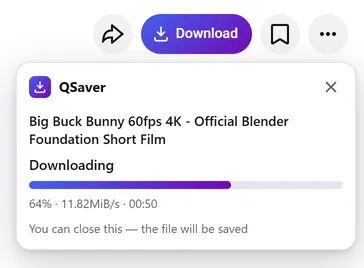
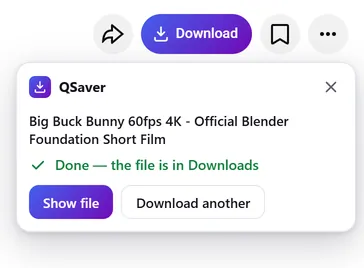
언제나 가까이에
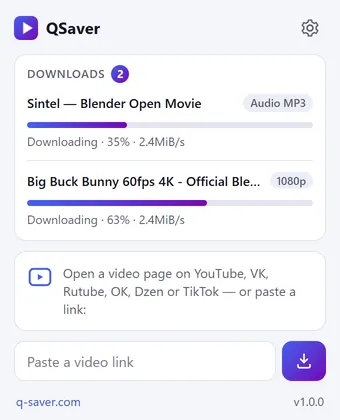
모든 다운로드를 한 창에서
- QSaver 아이콘을 클릭하면 모든 파일의 진행률과 속도를 볼 수 있습니다
- 창에 링크를 바로 붙여넣으세요. 사이트를 열 필요가 없습니다
- 링크를 마우스 오른쪽 버튼으로 클릭하고 “링크에서 동영상 다운로드”를 선택하세요
버튼 하나로 12개 사이트
공유 버튼 옆에 원래 있던 것처럼 자연스럽게 자리합니다. Shorts와 TikTok에서는 오른쪽 열의 둥근 버튼으로 표시됩니다.









그 밖에도 — 스크린샷은 없지만 같은 버튼입니다: X Reddit Pinterest Bilibili
오른쪽 클릭 메뉴
동영상 링크에서는 “링크에서 동영상 다운로드”, 동영상 페이지에서는 “이 동영상 다운로드”를 선택하세요.
더 많은 사이트: 아이콘으로
Mail.ru, Tumblr, Weibo, NTV 등: 링크를 QSaver 창에 붙여넣거나 링크를 마우스 오른쪽 버튼으로 클릭하세요.
내 취향대로 버튼 설정
“다운로드” 문구와 함께 또는 아이콘만 표시할 수 있습니다. 필요 없는 사이트는 설정에서 끌 수 있습니다.
내 언어로
24개 인터페이스 언어를 지원합니다. 확장 프로그램 설정에서 변경하세요.
한눈에 보기
자주 묻는 질문
확장 프로그램은 무료입니다. 로그인하지 않으면 하루 3개(최대 720p), q-saver.com에 로그인하면 5개까지 다운로드할 수 있습니다. 더 많은 다운로드, 1080p~4K, MP3는 구독으로 이용할 수 있으며, 확장 프로그램은 q-saver.com 계정의 요금제를 그대로 사용합니다.
현재는 데스크톱 Firefox(버전 140 이상)에서 이용할 수 있습니다. Opera와 Yandex Browser용 확장 프로그램은 Opera 부가 기능 카탈로그에서 심사 중이며, Chrome과 Edge용은 아직 없습니다. 다른 브라우저나 스마트폰에서는 웹사이트에서 다운로드하세요.
동영상 아래 버튼 줄의 공유 버튼 옆에 있습니다. Shorts와 TikTok에서는 오른쪽 열의 둥근 버튼입니다. 위의 스크린샷에서 각 사이트별 위치를 확인할 수 있습니다. 보이지 않으면 페이지를 새로고침해 보세요.
현재 페이지에서 바로 다운로드할 수 없는 경우, 버튼을 누르면 해당 동영상이 열린 q-saver.com이 열리며 그곳에서 평소처럼 이용할 수 있습니다. 패널의 “q-saver.com에서 열기”로 직접 이동할 수도 있습니다.
“다시 시도”를 누르거나 웹사이트에서 동영상을 열어 보세요. 그래도 해결되지 않으면 동영상 링크와 함께 고객 지원에 문의해 주세요. 확인해 드리겠습니다.
도구 모음의 QSaver 아이콘을 마우스 오른쪽 버튼으로 클릭하고 “삭제”를 선택하세요. 브라우저의 확장 프로그램 페이지에서도 삭제할 수 있습니다.
확장 프로그램 개인정보 보호
- The extension does not collect browsing history. On a video page it only finds the site's row of buttons to place its own next to them — it stores and transmits nothing from the page.
- On its own — at installation, at browser start and every few hours — the extension only asks q-saver.com where to place the button on each site: the answer describes places on the page (which element to find and where to stand), not code. This request carries no cookies and no page addresses — only the extension version. This keeps the button in place when a site changes its layout, without a new extension version.
- The video address goes to q-saver.com only when you press Download yourself — the on-page button, the extension window or the right-click menu. It is the same as pasting the link on the site: the server finds the video, downloads it and hands you the file. Requests carry your q-saver.com sign-in (the site's cookies) so that your plan and limits apply. From there the site's Privacy Policy applies.
- After installation the extension opens this page once, and after removal the browser opens it marked “removed” — that is how we count installs and removals. You may mark a reason for removal on this page — it is sent to the site only if you click it.
- When you open the extension window, it asks q-saver.com for your name, plan and downloads left today — with your sign-in on the site, like the site's header; the page address is not sent.
- The extension stores in the browser its own settings (language, button style, sites), the site's messages in your language, the button places and — until the browser is closed — the state of downloads in progress and your plan for the window.
- No ads, no analytics and no remotely loaded code — everything the extension does is in its package.
- Permissions: access to the tab when you click the icon (activeTab) — to read the video address; data on YouTube, VK, Rutube, OK, Dzen, TikTok, Twitch, Instagram, X, Reddit, Pinterest, Bilibili and Yandex video search pages — only to place the Download button on a video page; access to q-saver.com — to check what your plan allows, start the download and fetch the file; downloads — to save the finished file to Downloads; alarms — while a download is in progress, to wake the extension so the file is saved even after the tab is closed; context menu and storage — the right-click items and settings.