 Firefox 用拡張機能
動画のすぐ下に ダウンロード ボタン
動画の下のボタンを押して画質を選ぶだけで、ファイルが自動で保存されます。リンクをコピーする必要も、サイトを開く必要もありません。
- 無料
- 登録不要
- 広告なし

3ステップでファイルを入手
動画を開く
ダウンロードボタンは、動画の下の「共有」の隣にすでにあります。
画質を選ぶ
ページ上でそのまま選べます。最高 4K、音声のみも可能です。
ファイルを受け取る
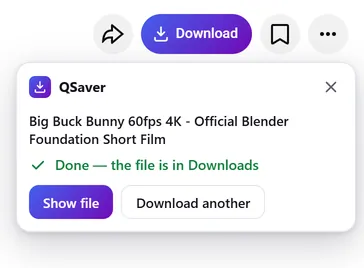
「ダウンロード」フォルダに自動で保存されます。タブを閉じても大丈夫です。
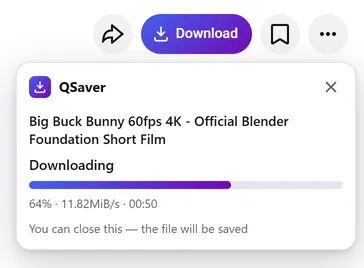
バックグラウンドでダウンロード
タブを閉じても、ファイルはちゃんと届きます
- ダウンロードするのはブラウザではなく、当社のサーバー q-saver.com です
- 進行状況は、アドレスバーの横の QSaver アイコンに表示されます
- 完成したファイルは自動で「ダウンロード」フォルダに保存されます。タブをいくつ開いていても保存は1回だけです
いつでも手元に
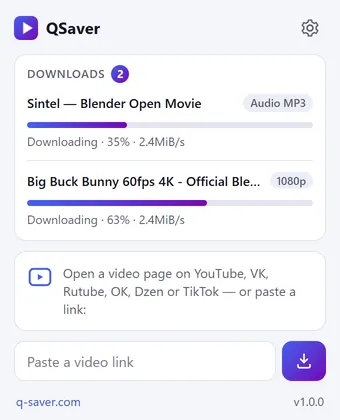
すべてのダウンロードを1つのウィンドウで
- QSaver アイコンをクリックすると、すべてのファイルの進行状況と速度が表示されます
- ウィンドウに直接リンクを貼り付けられます。サイトを開く必要はありません
- リンクを右クリック →「リンク先の動画をダウンロード」
ボタン1つで12サイトに対応
「共有」の隣に、もともとあったかのように自然に並びます。Shorts と TikTok では、右側の列に丸いボタンが表示されます。









ほかにも対応しています(スクリーンショットはありませんが、同じボタンです): X Reddit Pinterest Bilibili
右クリックメニュー
動画のリンク上では「リンク先の動画をダウンロード」、動画ページでは「この動画をダウンロード」が使えます。
ほかのサイトはアイコンから
Mail.ru、Tumblr、Weibo、NTV など:QSaver のウィンドウにリンクを貼り付けるか、リンクを右クリックします。
ボタンの表示はお好みで
「ダウンロード」の文字付き、またはアイコンのみ。不要なサイトは設定でオフにできます。
あなたの言語で
24の表示言語に対応しています。拡張機能の設定で変更できます。
まとめ
よくある質問
拡張機能は無料です。ログインなしなら1日3本まで(720p まで)、q-saver.com にログインすると1日5本までダウンロードできます。さらに多くのダウンロード、1080p〜4K、MP3 はサブスクリプションでご利用いただけます。拡張機能では、q-saver.com アカウントのプランがそのまま使われます。
現在はパソコン版の Firefox(バージョン 140 以降)で使えます。Opera と Yandex Browser 向けの拡張機能は Opera アドオンカタログで審査中で、Chrome と Edge 向けはまだありません。その他のブラウザやスマホでは、サイトからダウンロードしてください。
動画の下のボタン列、「共有」の隣にあります。Shorts と TikTok では、右側の列に丸いボタンがあります。各サイトでの位置は、上のスクリーンショットをご覧ください。見当たらない場合は、ページを再読み込みしてください。
その時点でページ上で直接ダウンロードできない場合は、ボタンを押すとこの動画を表示した状態で q-saver.com が開きます。サイトではいつもどおりすべての機能が使えます。パネルの「q-saver.com で開く」から、ご自身で開くこともできます。
「再試行」を押すか、サイトで動画を開いてください。それでも解決しない場合は、動画のリンクを添えてサポートまでご連絡ください。こちらで確認いたします。
ツールバーの QSaver アイコンを右クリックして「削除」を選びます。ブラウザの拡張機能ページから削除することもできます。
拡張機能のプライバシー
- The extension does not collect browsing history. On a video page it only finds the site's row of buttons to place its own next to them — it stores and transmits nothing from the page.
- On its own — at installation, at browser start and every few hours — the extension only asks q-saver.com where to place the button on each site: the answer describes places on the page (which element to find and where to stand), not code. This request carries no cookies and no page addresses — only the extension version. This keeps the button in place when a site changes its layout, without a new extension version.
- The video address goes to q-saver.com only when you press Download yourself — the on-page button, the extension window or the right-click menu. It is the same as pasting the link on the site: the server finds the video, downloads it and hands you the file. Requests carry your q-saver.com sign-in (the site's cookies) so that your plan and limits apply. From there the site's Privacy Policy applies.
- After installation the extension opens this page once, and after removal the browser opens it marked “removed” — that is how we count installs and removals. You may mark a reason for removal on this page — it is sent to the site only if you click it.
- When you open the extension window, it asks q-saver.com for your name, plan and downloads left today — with your sign-in on the site, like the site's header; the page address is not sent.
- The extension stores in the browser its own settings (language, button style, sites), the site's messages in your language, the button places and — until the browser is closed — the state of downloads in progress and your plan for the window.
- No ads, no analytics and no remotely loaded code — everything the extension does is in its package.
- Permissions: access to the tab when you click the icon (activeTab) — to read the video address; data on YouTube, VK, Rutube, OK, Dzen, TikTok, Twitch, Instagram, X, Reddit, Pinterest, Bilibili and Yandex video search pages — only to place the Download button on a video page; access to q-saver.com — to check what your plan allows, start the download and fetch the file; downloads — to save the finished file to Downloads; alarms — while a download is in progress, to wake the extension so the file is saved even after the tab is closed; context menu and storage — the right-click items and settings.